

When we work with Apache, we have port 80 available to access our Web server and test it in the browser. However, another program that we install later may also use port 80 by default (Skype, for example). In this case, when starting XAMPP, we will see this error message:
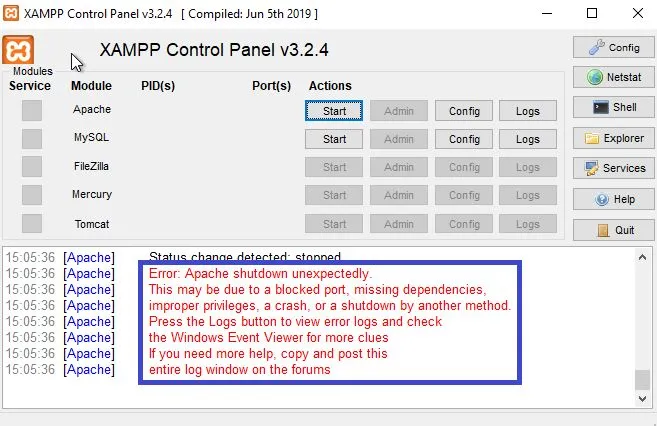
XAMMP Control Panel
How to solve this problem? One alternative is to change Apache's default port from 80 to another number, like 8080 or 81 simply.
To do this, we will need to access the Apache configuration file in XAMPP. It will be in the Config > Apache (httpd.conf) option:
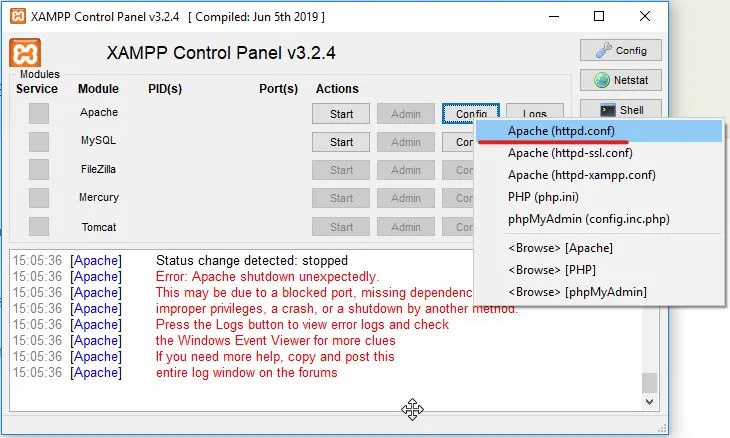
XAMMP Control Panel
A text editor will open with the content of this file (in my case, it will be Notepad on Windows). We will look for the line “Listen 80” and change it to “Listen 8080” for example:
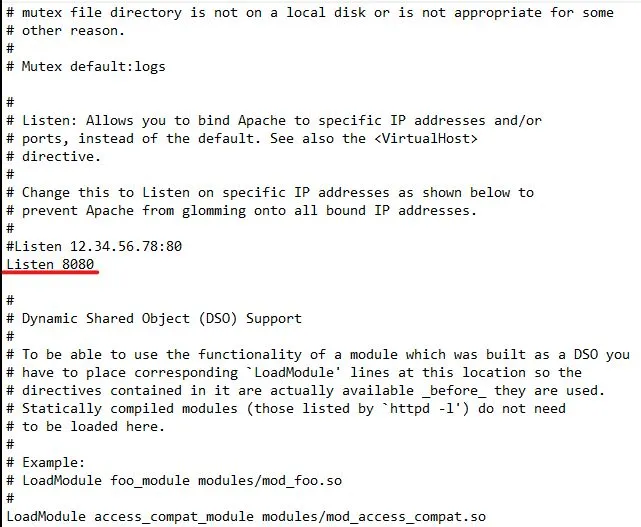
httpd.conf file
We will repeat this process with the line “ServerName localhost:80”, changing it to “ServerName localhost:8080”:
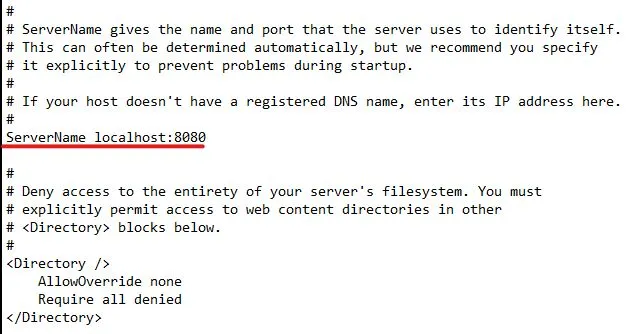
httpd.conf file
Now it is necessary to save the file. After that, just restart Apache from the XAMPP panel.
With this, we can access our server, but we will need to specify the port in the URL with a colon: localhost:8080.

Chrome's address bar
Also check out the video tutorial on how to change this port:
In this way, the port has been successfully changed, the error has been resolved, and our server is ready to be tested :)
See you in the next article, until then!