
In this article, we will talk about callback functions and how they helped in the development of Asynchronous JavaScript. You can check the content of part 1 of this series at this link:
Asynchronous JavaScript: The Complete Guide - Part 1 - What is an asynchronous code?
What are callbacks
A callback function is basically a function executed after another. For this function to be executed, we usually inform it as a parameter of an initial function. To better understand this concept, think of the following example: when you were a child, did you ever receive some tasks from your mother? Perhaps you remember receiving a list of tasks. Example: “wash the dishes, sweep the room, and tidy your bedroom.” You did all of that. But, at the end of the day, she tells you: “I forgot one more thing: take out the trash.” Did you notice? You completed several tasks, but in the end, she handed you one more to do. A callback function works the same way. We execute a function that will perform several actions. But we also inform a function in the parameter, as if saying: “after executing everything I’ve already defined, perform this additional task in the parameters.”
But why should we use a callback function? In some cases, we just want to execute an action after something has already occurred on the page. Example: imagine that we want to render a list of cities in a table. However, the information about the cities is coming from an API. So, when will we perform the rendering? Only when we actually have the data, right? In this case, we could create a rendering function that would be the callback of the main function, which would be responsible for bringing the data.
Two classic examples of callback functions are the setTimeout() and setInterval() functions, which are native to JavaScript. Both expect a return function. But what do you think about creating a callback function together? Check out the code below:
function writeHello(callback) {
console.log('Hello World');
if (typeof callback == 'function') callback();
}
We created a function called writeHello() that will display “Hello World” in the console. But, in addition to that, we expect a variable called callback as a parameter. And notice that in the last line of the function we check what type the variable is, to ensure it is a function and then we call this variable with parentheses at the end of its name, making it clear that it is a callback function.
Now see how we could execute the writeHello() function:
writeHello(function() {
console.log('Callback Function');
});
Very interesting, don’t you think? We called the writeHello() function and already provided an anonymous function, a callback function, which will also display a message in the console.
If we access the console while executing this code, we will see the following result:
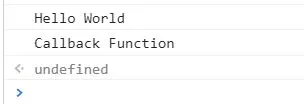
Both messages were displayed, as both functions were executed.
This is the concept of callback functions. But, as we talked about in the previous article, we will create a website that will consume an API and display the information on the screen. What do you think about starting to develop this project, putting into practice what we learned about callbacks? Ready? Then, let’s go!
All the codes we develop will be available on our GitHub.
First, let’s explain the structure of the project:
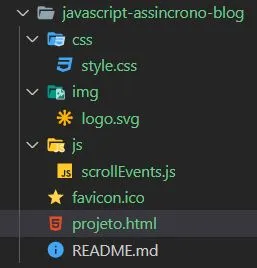
We have a folder for style files, a folder for JS files, a folder for image files, and finally our HTML file, which serves as the entry point for the project.
Regarding external tools, we will only use Materialize.css to make our page a little more pleasant and easier to style.
Initially, our project looks like this:

Now, let’s get into the logic of the project. Our goal is to type the name of a game in the search box and have the results rendered in the main games area. First, we will need a function to consume the game API. We will create these functions inside a file called requests.js, which will be located inside the js folder.
The first function will be called getGameByName() and will expect two parameters: the name of the game we are looking for and a callback function, which is the theme of this article. Its code will look like this:
function getGameByName(name, callback) {
let request = new XMLHttpRequest();
request.open('GET', `https://api.rawg.io/api/games?search=${name}`, true);
request.onload = () => {
let response = JSON.parse(request.response);
if (typeof callback == 'function') callback(response);
};
request.send();
}
Explaining the function: we will create an XML request using the XMLHttpRequest() class. Remember that we taught the various features of this class and how to manipulate it in our Complete JavaScript Course.
Continuing the explanation. After creating this XML request, we will access the API URL, providing the name we expect there in the function arguments. When we obtain the data, we will convert it to JSON and, now note, execute the callback function, providing the game data to this function. Thus, we can do whatever we want with this information, that is, we can render them on the screen. Now we need to call this function we just created. The name of this function will be initGames().
Before that, going back to the HTML file, let’s open a tag at the end of it and create two functions and two variables that will be very useful.
The variables we will create will serve as our reference for the HTML elements that will contain the main games and the related games. Here is the code to create them:
const gamesListPrincipal = document.querySelector('#games-list-principal');
const gamesListRelationed = document.querySelector('#games-relationed');
The two useful functions we will create are as follows: 1) setGameLoad(). It will be responsible for adding a “loading” element to our page while we are waiting for the API data to return. Its code is as follows:
function setGameLoad(gameEl) {
gameEl.innerHTML = `
<div class="preloader-wrapper active" style="position: absolute; left: 50%; margin-top: 30px">
<div class="spinner-layer spinner-blue-only">
<div class="circle-clipper left">
<div class="circle"></div>
</div>
<div class="gap-patch">
<div class="circle"></div>
</div>
<div class="circle-clipper right">
<div class="circle"></div>
</div>
</div>
</div>
</div>
`;
}
Explaining its content: we will expect a variable called gameEl as a parameter. This variable represents the element where the “loading” will be applied. We will select this element and change its HTML content through the innerHTML property, then adding the default HTML from Materialize.css, which is the “loading” itself.
Second function: 2) setGameHTML(). This function will create the template for each game coming from the API. Through this function, we will define the HTML for each item and how its information will be displayed to our user. Its code is as follows:
function setGameHTML(game) {
let div = document.createElement('div');
div.dataset.gamename = game.slug;
div.className = 'item';
div.innerHTML = `
<div class="card" >
<div class="card-image">
<img src="${game.background_image}" />
</div>
<div class="card-content">
<p>
<h5>${game.name}</h5> (${game.released})
</p>
</div>
</div>
`;
return div;
}
Explaining its content: we will virtually create a After creating these functions and variables, we will now indeed move on to the initGames() function. It will expect a parameter called gamename, representing the name of the game we are looking for. As soon as we call this function, we want the “loading” element to appear, giving the user a visual feedback, so they won’t be impatient, not knowing what is happening. For this, we will call the setGameLoad() function, informing the variable gamesListPrincipal, that we created above. Now we reach a very important moment. We will call the getGameByName() function, passing as parameters the name of the game, which we have already stored in the variable gamename, and also a callback function. The code will look like this: Explaining: we called the getGameByName() function and informed an anonymous function as the second parameter that, as we defined in the requests.js file, will be executed only when we have the data in our hands. This anonymous function first cleared the content of the area of our site that will contain the games, ensuring that no previous information will overwrite the new one. Then, we performed a loop on the results of the request using the forEach() method. Inside this function, we created the HTML for each item using the setGameHTML() function, which has already been developed, and finally added this new element to the div that lists the games. This is basically how our project will work. What we need to define now is when the initGames() function will be called. What do you think about calling this function after the user types the name of the game they are looking for and removes focus from the search field? There is an event for this: blur. See how to define it in the code below: Explaining: we selected the field of type text that was created on our page and added a listener for the “blur” event. When this event occurs, we will call the initGames() function, informing the value of this same field as a parameter. We achieve this information through the event object. We are ready to test our project. Let’s access the HTML file in the browser, type the name of some game in the search field, and click outside this field, which will trigger the event. The result is as follows: It’s working perfectly! Remember that it’s possible to drag the items with the mouse, which makes this page very modern. Amazing, isn’t it? We did this using the concept of callback functions, we hope you liked it. You can find the codes developed in this article at this link: https://github.com/hcodebr/javascript-assincrono-blog But there’s still one thing missing: imagine if we could click on a game and see the related games below it. It would basically be one more request to the API. How about we do this with callbacks too? We will develop this code in the next article: Asynchronous JavaScript: The Complete Guide - Part 3 - Training Callbacks, which will be out tomorrow. So, keep an eye on our news and see you in the next article :)function initGames(gamename) {
setGameLoad(gamesListPrincipal);
getGameByName(gamename, function(games) {
gamesListPrincipal.innerHTML = '';
games.results.forEach(game => {
let divGame = setGameHTML(game);
gamesListPrincipal.append(divGame);
});
});
}
document.querySelector('[type=text]').addEventListener('blur', e => {
initGames(e.target.value);
});