

Steve Jobs once said: “Incredible things in the business world are never done by a single person, but by a team.” It is true that when we program, we are not necessarily in the business world, but we can apply the principle mentioned in this quote: when we work as a team, we are stronger and can do amazing things.
Teamwork is very present in the world of Web Development. For example: think 1) of programming teams in companies, 2) teams that work remotely, or 3) the so-called open-source projects, where programmers from various parts of the world can contribute their code. All of this involves teamwork. And there is a technology that helps make this work possible and also simple. We are talking about Git.
What is Git?
Git is a version control system. With this tool, we can share the changes we make in the projects we work on, thus simplifying group work.
Additionally, it allows us to add our project to a cloud repository, which makes us much calmer, as we don’t need to worry about backing up files since our code is safely stored.
It was created by Linus Torvalds, the same creator of Linux. Today, Git is widely used by the vast majority of companies, and knowledge of this technology is often a requirement for a job position. Thus, we see that learning Git can be a differential on our resume.
In this article, we will learn how to install Git on Windows, Linux, and Mac Systems.
Installing Git
The official Git website is git-scm.com
Upon accessing the homepage, we will see a Downloads option, as shown in the image below:

Upon accessing this page, we will see the options for Operating Systems:
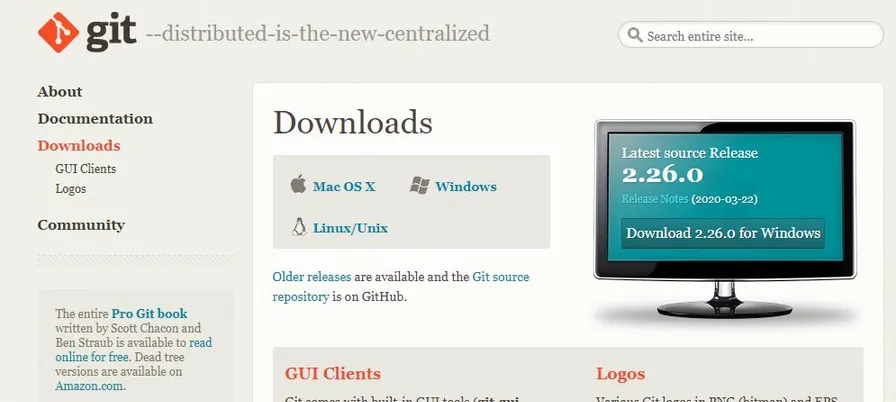
We will now discuss how to install Git for each of the options on this page.
Windows
To download Git for Windows, we can use the “traditional” process, which involves downloading an executable and installing Git through a graphical interface, using the famous “Next Next Finish.” However, we will use a very interesting tool called Chocolatey. We teach its installation in this article: Getting to know Chocolatey: The Package Manager for Windows
To install Git using Chocolatey, we will open PowerShell or the Windows Command Prompt and execute choco install git.
After running this command, we can check the Git version with another command:
git --version
If the version is returned, it means that the installation was successful.
Before performing any operation with Git, it is important to remember how it works during the workflow. The process of using Git basically consists of three steps:
1 - We make a change to one or more files in our project.
2 - We inform that it was us who made the change.
3 - We add those changes to our remote repository, which is in the cloud.
To carry out this process, we need to “sign” that change as if a civil engineer signs the blueprint of a house.
We can say that for Git, our “signature” consists of our email and our name. To configure these credentials, we will execute the two commands below:
git config --global user.name "Anthony Rafael"
git config --global user.email "[email protected]"
Note that in both commands we used the “--global” flag, which defines that this name and email configuration will apply to my entire computer. This means that any Git project we start will automatically have this configuration set by default.
Linux
To install Git on Linux, we will first update the packages we already have installed with the following command:
sudo apt-get update
Then, we will install Git with the command below:
sudo apt-get install git
With that, Git will be added to our machine. We will need to set the same name and email configuration:
git config --global user.name "Anthony Rafael"
git config --global user.email "[email protected]"
Mac
For downloading on Mac, we will use Homebrew, another great Package Manager. We will execute the following in the Terminal:
brew install git
After completing the installation, we will also configure our “signature” on Mac:
git config --global user.name "Anthony Rafael"
git config --global user.email "[email protected]"
Conclusion
Now we are ready to use Git in our projects, whether on Windows, Linux, or Mac. As we said at the beginning, great teams can accomplish amazing things, and Git helps us work in groups. We will not regret using Git, as knowledge of this tool can open doors for us, whether to work in a developer team or to contribute to great open-source projects.
Thank you for reading this far, and see you in the next article :)