

In this article we will show how to configure PHP 8 on Windows 10 using NGINX and optional tips to facilitate the start, stop, and restart of the executables.
Downloads
For this tutorial we used the following versions:
PHP 8.0.0 VS16 x64 Non Thread Safe (2020-Nov-24 22:43:38)
https://windows.php.net/downloads/releases/php-8.0.0-nts-Win32-vs16-x64.zip
(If you want to check for new versions or download for x86 go to: https://windows.php.net/download/)
NGINX 1.18.0
https://nginx.org/download/nginx-1.18.0.zip
(If you want to check for new versions go to: https://nginx.org/en/download.html)
RunHiddenConsole
This software will be used if you want to set up automatic startup for PHP FastCGI and Nginx.
https://redmine.lighttpd.net/attachments/download/660/RunHiddenConsole.zip
PHP 8 NTS
After downloading the file php-8.0.0-nts-Win32-vs16-x64.zip, extract it to a folder. We recommend using an easy location like C:\PHP for example. In the settings we will show, we will use this path as the base for the location of the PHP 8 binaries; if you choose to save it in another location, remember to make the necessary adjustments.
Locate the file php.ini-development and rename it to php.ini since the PHP binaries will look for this file where it should contain the configurations.
Lines with a semicolon (;) mean that it is commented out and will not be read as a configuration. Whenever we need to enable or change the value of a configuration directive, make sure that the line does not start with a semicolon.
Locate the error_reporting directive and enable all errors except notices and strict ones.
error_reporting = E_ALL & ~E_NOTICE & ~E_STRICT
The next directive is doc_root, where we will define the root directory. This is a required configuration to run PHP 8 with FastCGI on Nginx. For this example, we are pointing to a directory called www on drive C. If you don’t have it, you need to create it or configure another directory.
doc_root = "C:\www"
Now we need to inform PHP where the folder with the extensions or DLL files is located. To do this, uncomment the extension_dir directive with the value "ext".
extension_dir = "ext"
Right below you will see another directive that we need to change, called sys_temp_dir. You will need to specify the path to the Windows temporary directory.
sys_temp_dir = "C:\Windows\Temp"
Starting from line 920, we will have the extensions available to be enabled according to your needs. For example, if you wish to use the MySQL database, you must enable the mysqli and/or pdo_mysql extension.
In this tutorial, we enabled the following extensions:
extension=curl
extension=fileinfo
extension=mbstring
extension=exif
extension=mysqli
extension=openssl
extension=pdo_mysql
One of the most awaited news in version 8 of PHP is JIT (Just In Time). And to enable this option, you need to configure the following directives:
pcre.jit=1
To run PHP 8 with FastCGI, simply execute the command below:
C:\PHP\NTS\php-cgi.exe -b 127.0.0.1:9000
This command will not return anything if everything is correct, but it will block the terminal while PHP is running.
Now we can configure Nginx, which should look for this local server on port 9000 with PHP 8.
Nginx 1.18
Extract the files from the compressed file nginx-1.18.0.zip to the directory C:\NGINX.
We will edit some configurations in the nginx.conf file located in the conf folder of C:\NGINX.
In this file, comments are defined by the hashtag (#) character. So to enable a directive you need to remove these comments.
On line 43 we have the start of the configuration block for location / as follows:
location / {
	root html;
	index index.html index.html;
}
We will change the root directory to point to the same directory we configured in php.ini and add the index.php file as one of the default file possibilities.
location / {
	root "C:\www";
	index index.php index.html index.html;
}
Now from line 65 to line 71 we have an example of PHP configuration. We can use it as a base by removing the comments and making some small modifications.
Initially, the file will look like this:
#location ~\.php$ {
#	root			html;
#	fastcgi_pass	127.0.0.1:9000;
#	fastcgi_index	index.php;
#	fast_cgi_param	SCRIPT_FILENAME /scripts$fastcgi_script_name;
#	include			fastcgi_params;
#}
After removing the comments and making the modifications, the configuration block will look like this:
location ~\.php$ {
	root			"C:\www";
	fastcgi_pass	127.0.0.1:9000;
	fastcgi_index	index.php;
	fastcgi_param	SCRIPT_FILENAME $document_root$fastcgi_script_name;
	include			fastcgi_params;
}
Note that we changed the root to the directory C:\www and in the fastcgi_param configuration line, we replaced /scripts with $document_root.
Now to start the Nginx server, simply call the executable nginx.exe located in the C:\NGINX directory with the following command:
C:\NGINX\nginx.exe
As long as no service is running on port 80, this command will make the nginx server start and look for PHP 8 with FastCGI running on port 9000.
At this point, you can test by creating a php file in the C:\www folder as the example below:
<?php

phpinfo();
And then in the browser open the address: http://localhost
You should see the result below:
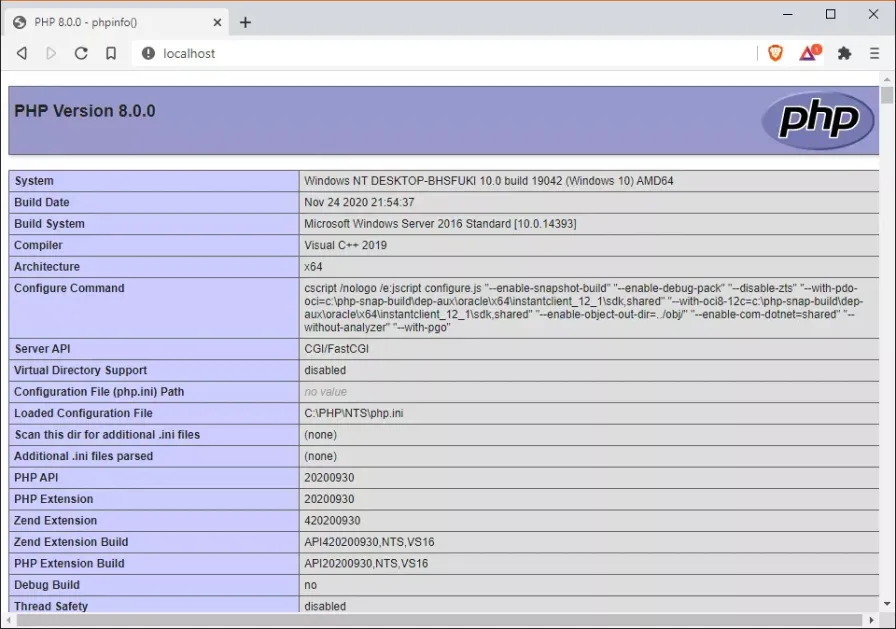
Result in the php file created to test the execution of PHP 8 with Nginx
However, if you close the terminals or restart the computer, you will need to start php and nginx again. If you want to set it up to start automatically, you can create a bat file and configure it as a scheduled task in Windows 10.
Creating .BAT Files
nginx-start.bat file to start the services:
@ECHO OFF

PUSHD "C:\NGINX"

ECHO Starting PHP 8 with FastCGI...

RunHiddenConsole.exe "C:\PHP\php-cgi.exe" -b 127.0.0.1:9000

ECHO Starting Nginx...

RunHiddenConsole.exe "C:\NGINX\nginx.exe"

POPD

EXIT /b
nginx-stop.bat file to stop the services:
@ECHO OFF

TASKKILL /f /IM nginx.exe

TASKKILL /f /IM php-cgi.exe

EXIT /b
nginx-restart.bat file to restart the services:
@ECHO OFF

CALL nginx-stop.bat

CALL nginx-start.bat

EXIT /b
Now you can close the terminals and just click on the .bat files to execute the desired action.
But let's schedule the automatic startup through the Task Scheduler in Windows 10.
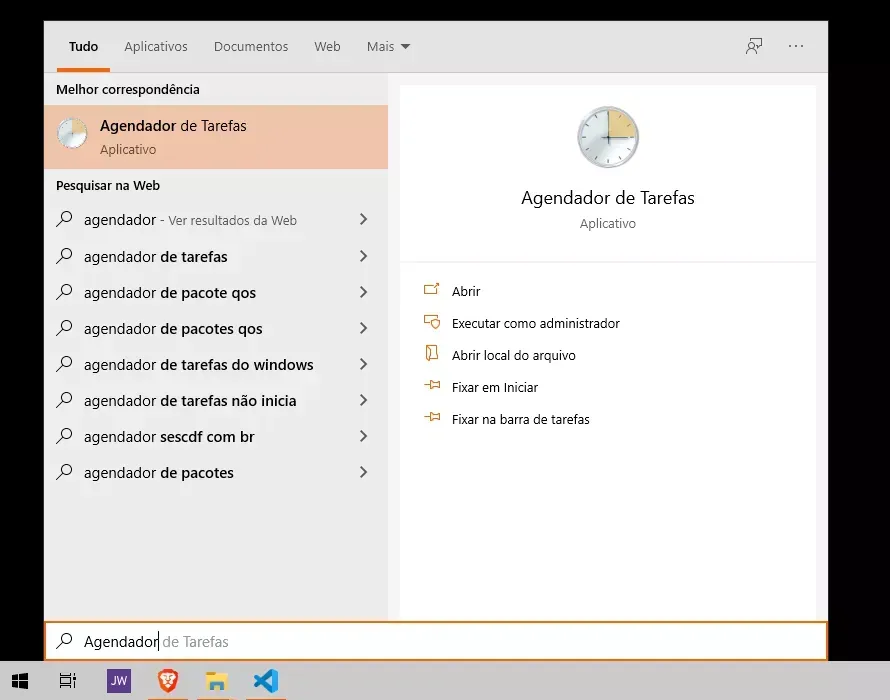
Search in the start menu for: Task Scheduler
On the initial screen of the program, in the Actions panel click on Create Task...
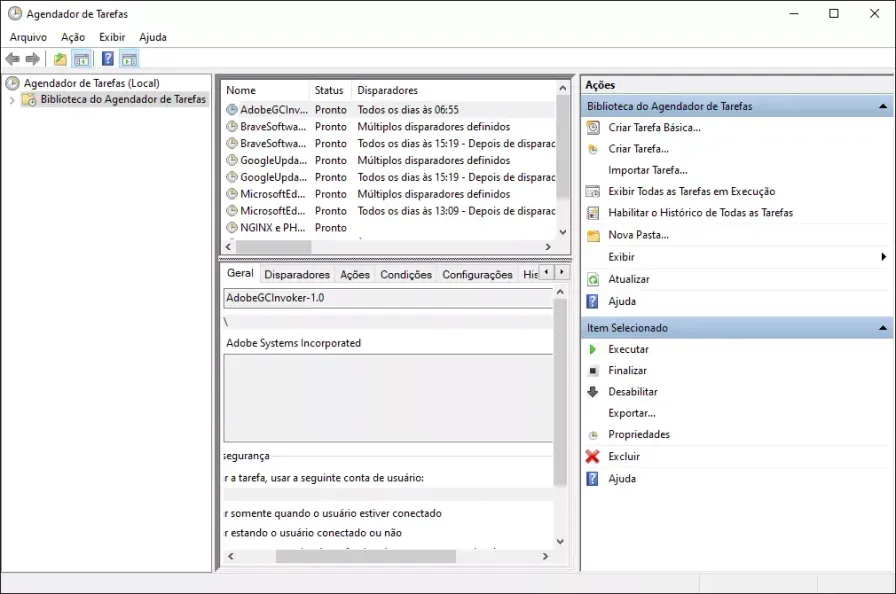
Initial screen of the Task Scheduler in Windows 10
The screen below should open:
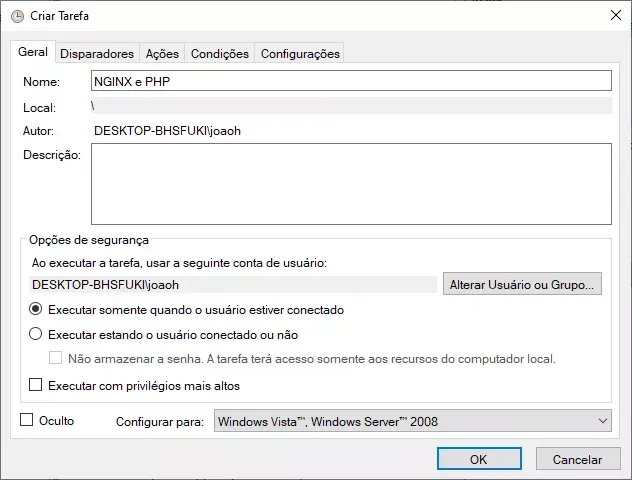
Create Task screen
On this screen, you can define a name and describe this task for easy identification later.
Click on the Actions tab.
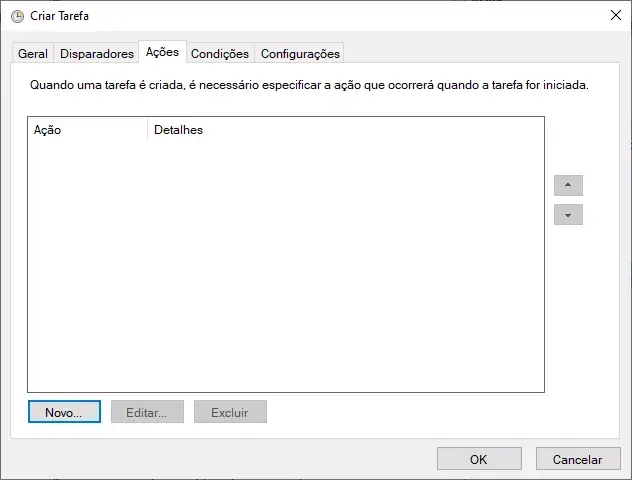
Actions tab of the Create Task screen
Click the New... button to add a new action.
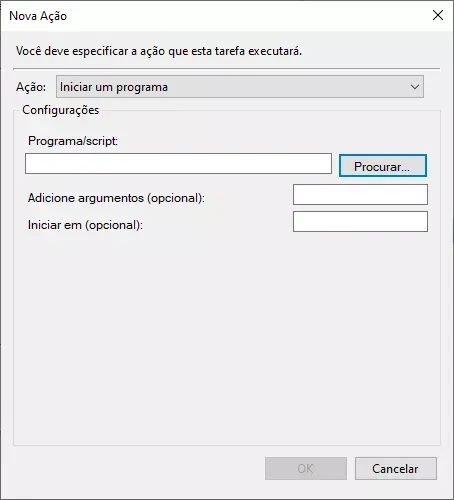
New Action screen
On the New Action screen, click on Browse to locate the nginx-start.bat file
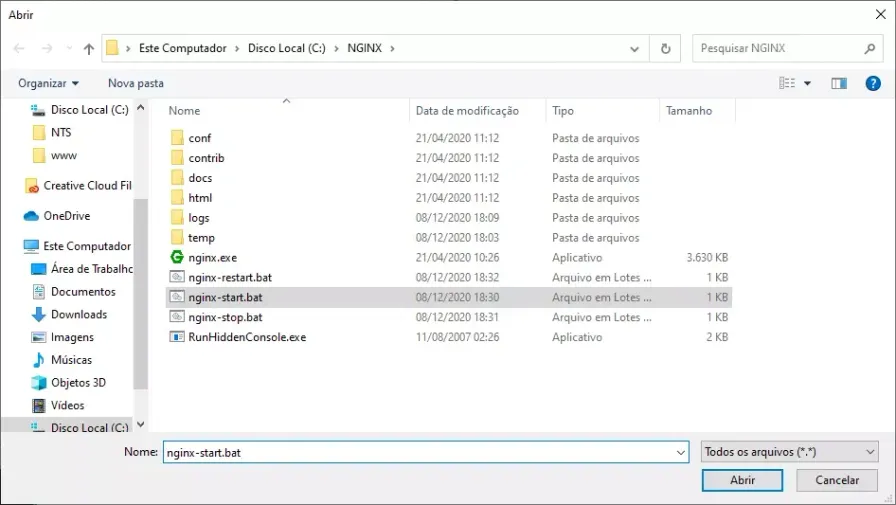
Search for and select the nginx-start.bat file
Click Open and then OK on the open screens to save the action and the scheduled task.
All set, now every time the computer starts and port 80 is free, the Nginx service with PHP 8 FastCGI will start automatically.