
Hcode
AI for Developers

Creating AI Agents with Cursor

3 - 6 Hours 4 Modules

Overview

Main Theme: AI for Developers

Duration: 3 - 6 Hours

Level: Advanced

Target Audience: Software Developers, System Architects, and DevOps Engineers

ABOUT THE TRAINING

Cursor is considered the code editor of the future as it is not just an extension but a fork of VS Code built around AI. This training teaches how to master features that allow editing multiple files simultaneously through natural language, ensuring that the developer maintains a continuous flow without ever leaving the environment where the code resides.

Objective

Enable the professional to use Cursor as a true development agent, mastering context engineering to obtain suggestions that are systematically correct and not just syntactically valid.

TRAINING MODULES

Module 01

Context Engineering and Global Vision

Learning techniques to provide the AI with the complete view of the project’s architecture. The focus is to ensure that code suggestions respect the dependencies and patterns of all folders, avoiding isolated solutions that do not fit within the overall structure.

Module 02

Documentation Integration

Using documentation integration features to add new libraries to the context. The student will learn to make the AI utilize newly released frameworks or APIs, ensuring that suggestions are always up-to-date with the latest versions of technologies.

Module 03

Spec-Driven Development (SDD)

Learning how to use requirements files to guide the Agent. The focus is to make the AI generate controllers, models, and services that are 100% faithful to the established contract, reducing integration errors and ensuring alignment between backend and frontend.

Module 04

Custom Rules (User & Project Rules)

Setting up permanent guidelines for the AI's behavior. The student will learn to define project rules and custom commands to automate repetitive build or test tasks, ensuring consistency across the development team.

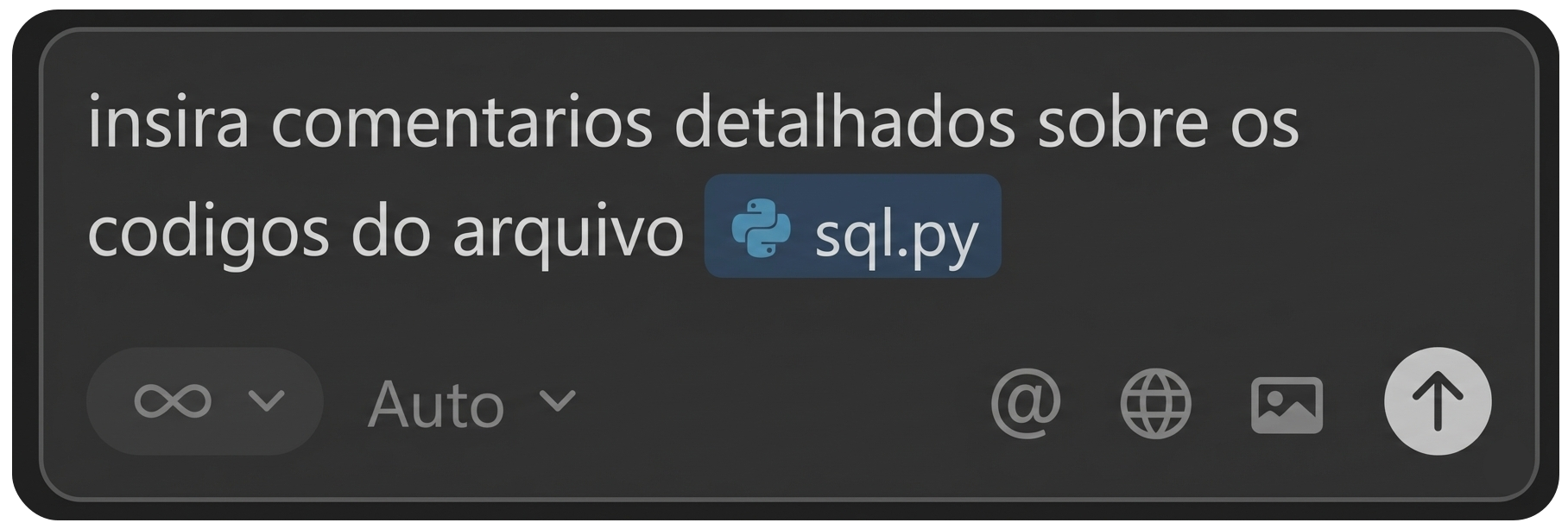
The Cursor screen in practice

Cursor prompt screen

Results

Python code example
# Import (não utilizado neste script) do módulo operator
from operator import index # Import (não utilizado neste script) do módulo operator
# Biblioteca padrão do Python para trabalhar com bancos de dados SQLite
import sqlite3 # Biblioteca padrão do Python para trabalhar com bancos de dados SQLite
# Biblioteca para análise e manipulação de dados (Pandas)
import pandas as pd # Biblioteca para análise e manipulação de dados (Pandas)

# Cria / abre uma conexão com o banco de dados SQLite chamado 'web.db'.
# Se o arquivo 'web.db' não existir, ele será criado automaticamente.
conn = sqlite3.connect('web.db') 

# Lê o arquivo CSV 'bd_data.csv' para um DataFrame do Pandas.
# O parâmetro index_col=0 indica que a primeira coluna do arquivo será usada como índice do DataFrame.
df_data = pd.read_csv('bd_data.csv', index_col=0)
A teaching example of connecting to SQLite and reading a CSV with Pandas

Comments added

I added detailed comments in Portuguese throughout the sql.py file, explaining:

  • Imports (sqlite3, pandas, operator) and the role of each one.
  • Opening the connection to the SQLite database (web.db) and what happens when the file does not exist.
  • Reading the CSV with Pandas, setting the index, and sending it to the database with to_sql.
  • Creating, dropping and recreating the products table, explaining the types and the primary key.
  • INSERT, SELECT, UPDATE and DELETE statements, line by line, including:
    • Using the cursor,
    • Different queries (SELECT *, filters with WHERE, multiple conditions, selecting columns),
    • Converting the results into a DataFrame,
    • Examples of pd.read_sql,
    • Updating and deleting records in the data table.

Cursor settings

This screen is where you configure the rules and commands that Cursor passes to the agent. They define language, style, project conventions and command shortcuts.
  • Import Settings
  • Include CLAUDE.md in context
    When enabled, Cursor looks for CLAUDE.md or CLAUDE.local.md files in the project.
    The content of those files is sent along with every question, as a manual for the project (coding standards, how to run tests, where certain files live, and so on).
    Useful for teaching the agent how the project works without repeating everything in the chat.
  • Import Claude Commands
    When enabled, Cursor reads commands defined in the .claude/commands and .cursor/commands folders. Those commands show up as shortcuts you can call in the chat (for example, a command that always runs pytest, or generates a specific kind of file). It is a way of automating repetitive tasks with preconfigured scripts.
  • User Rules
  • User Rules (e.g. Always respond in Portuguese) are personal rules that apply to everything you do in Cursor, across all projects. This is where you put general preferences: explanation style, preferred technologies, level of detail, and so on.
  • Project Rules
  • Rules specific to this project/folder only. They cover things like coding conventions, folder organization, file naming and commit style.
  • Project Commands
  • Custom commands that apply only to this project.
  • User Commands
  • Personal commands, available across every project in Cursor.

Get in touch with our specialists